FMW 11.1.1.7.0 - Applying Oracle Jdeveloper Patch 20265562: MERGE REQUEST ON TOP OF 11.1.1.7.0 FOR BUGS 19890682 14047857 16632043
- Download Patch 20265562 ( p20265562_111170_Generic.zip )
- Set environment variable ORACLE_HOME to $MW_HOME]/oracle_common
- Stop services
For Standalone JDeveloper install type, shutdown JDeveloper and ensure that Embedded/Integrated WLS Server is also stopped.
For Standalone WLS install type, ensure that WebLogic server is stopped.
Applying Patch 20265562
- Unzip the patch zip file
$ unzip -d PATCH_TOP p20265562_111170_Generic.zip
- $ cd PATCH_TOP/20265562/oui
- Run OPatch apply
- For Standalone JDeveloper install type, start JDeveloper and ensure Embedded/Integrated WLS Server is also started.
- For other install types including standalone WLS, restart Admin Server and Managed Servers.
Patch De-installation
If any issues post patching and rollback is required, follow below steps:
- Change to the directory where the patch was unzipped.
$ cd PATCH_TOP/20265562/oui
- Run OPatch rollback
$ opatch rollback -id 20265562
- Clean contents of tmp directory from $DOMAIN_HOME\servers\DefaultServer\tmp for standalone Jdeveloper installs and from $DOMAIN_HOME/servers/[servername]/tmp for Admin and Managed Servers of other install types
- Start JDeveloper and ensure Embedded WLS Server is also started
Related Posts:
FMW 11.1.1.7.0 - Applying Patch 20805649: REL9 BP16 CUMULATIVE JDEVADF_11.1.1.7.9ADF-FAREL9-BP_GENERIC_150401.1409.6807
Applying Patch 20715966: JDEVADF SECURITY PATCH UPDATE 11.1.1.7.0 (CPUJUL2015)
FMW 11.1.1.7.0 - Applying Patch 18182516: UTF-8 CHARACTERS E3 E80 E81 NOT RECOGNIZED PROPERLY BY B2B
ODSM 11g - Applying Patch 21665104: MERGE REQUEST ON TOP OF 11.1.1.7.0 FOR BUGS 20715966 17191718 to resolve errors java.lang.Exception: MDSLockedSessionManager already registered. Can't register more than one.
Showing posts with label JDeveloper. Show all posts
Showing posts with label JDeveloper. Show all posts
Sunday, 17 January 2016

FMW 11.1.1.6.7 - Applying SOA Patch 12596488: IMPLEMENT GETCOMPONENTSSNAPSHOT() METHOD IN CLASS MEDIATORFACADESERVICE
FMW 11.1.1.6.7 - Applying SOA Patch 12596488: IMPLEMENT GETCOMPONENTSSNAPSHOT() METHOD IN CLASS MEDIATORFACADESERVICE
Pre-requisites
- Ensure Patch 16702086 SOA BUNDLE PATCH 11.1.1.6.7 is already applied
- Ensure all other pre-requisites in Patch Readme file are met
- Download Patch 12596488 (p12596488_111167_Generic.zip)
- Set Environment variables, ORACLE_HOME to SOA_HOME, PATH, etc
Applying Patch 12596488 on SOA Suite Home
- Unzip the patch zip file
$ unzip -d PATCH_TOP p12596488_111167_Generic.zip
- Shutdown all servers (AdminServer and all Managed Servers)
- $ cd PATCH_TOP/12596488/oui
- Run opatch apply
$ opatch apply
- Restart all servers (AdminServer and all Managed servers)
Patch De-Installation
If any issues after applying the patch and a rollback is required, follow below steps:
- Shutdown all servers (AdminServer and all Managed Servers)
- $ cd PATCH_TOP/12596488/oui
- Run opatch rollback
$ opatch rollback -id 12596488
- Restart all servers (AdminServer and all Managed servers)
Applying Patch 12596488 on JDeveloper Home
- Set ORACLE_HOME to your "[MW_HOME]/jdeveloper" directory.
- Shutdown JDeveloper and make sure that the Embedded/Integrated WLS Server is
also stopped.
Applying Patch on JDev Home
- Unzip the patch zip file into the PATCH_TOP.
$ unzip -d PATCH_TOP p12596488_111167_Generic.zip
- $ cd PATCH_TOP/12596488/sa
$ opatch apply -jdk [Path to jdk] -jre [Path to jre]
- Start JDeveloper and make sure that the Embedded WLS Server is also started.
Patch De-Installation
If any issues after applying the patch and a rollback is required, follow below steps:
- Shutdown JDeveloper and make sure that the Embedded/Integrated WLS Server is
also stopped.
$ opatch rollback -id 12596488
- Clean tmp directory contents from the domain
[JDEV_USER_DIR]\DefaultDomain\servers\DefaultServer\tmp\*
- Start JDeveloper and make sure that the Embedded WLS Server is also started.
Pre-requisites
- Ensure Patch 16702086 SOA BUNDLE PATCH 11.1.1.6.7 is already applied
- Ensure all other pre-requisites in Patch Readme file are met
- Download Patch 12596488 (p12596488_111167_Generic.zip)
- Set Environment variables, ORACLE_HOME to SOA_HOME, PATH, etc
Applying Patch 12596488 on SOA Suite Home
- Unzip the patch zip file
$ unzip -d PATCH_TOP p12596488_111167_Generic.zip
- Shutdown all servers (AdminServer and all Managed Servers)
- $ cd PATCH_TOP/12596488/oui
- Run opatch apply
$ opatch apply
- Restart all servers (AdminServer and all Managed servers)
Patch De-Installation
If any issues after applying the patch and a rollback is required, follow below steps:
- Shutdown all servers (AdminServer and all Managed Servers)
- $ cd PATCH_TOP/12596488/oui
- Run opatch rollback
$ opatch rollback -id 12596488
- Restart all servers (AdminServer and all Managed servers)
Applying Patch 12596488 on JDeveloper Home
- Set ORACLE_HOME to your "[MW_HOME]/jdeveloper" directory.
- Shutdown JDeveloper and make sure that the Embedded/Integrated WLS Server is
also stopped.
Applying Patch on JDev Home
- Unzip the patch zip file into the PATCH_TOP.
$ unzip -d PATCH_TOP p12596488_111167_Generic.zip
- $ cd PATCH_TOP/12596488/sa
$ opatch apply -jdk [Path to jdk] -jre [Path to jre]
- Start JDeveloper and make sure that the Embedded WLS Server is also started.
Patch De-Installation
If any issues after applying the patch and a rollback is required, follow below steps:
- Shutdown JDeveloper and make sure that the Embedded/Integrated WLS Server is
also stopped.
$ opatch rollback -id 12596488
- Clean tmp directory contents from the domain
[JDEV_USER_DIR]\DefaultDomain\servers\DefaultServer\tmp\*
- Start JDeveloper and make sure that the Embedded WLS Server is also started.
Related Posts:
Applying Patch 20900599: SOA Bundle Patch 12.1.3.0.3
Applying Patch 20423535: SOA Bundle Patch 11.1.1.7.7
Applying Patch 19953598: SOA Bundle Patch 11.1.1.7.6
Applying Patch 19190139 SOA BUNDLE PATCH 11.1.1.7.5
Applying Patch 18609527 SOA BUNDLE PATCH 11.1.1.7.4
Applying Patch 18072286 SOA BUNDLE PATCH 11.1.1.7.3
Applying Patch 17584181 SOA BUNDLE PATCH 11.1.1.7.2
FMW 11.1.1.6.0 - Applying Patch 16702086: SOA BUNDLE PATCH 11.1.1.6.7
Applying Patch 20900599: SOA Bundle Patch 12.1.3.0.3
Applying Patch 20423535: SOA Bundle Patch 11.1.1.7.7
Applying Patch 19953598: SOA Bundle Patch 11.1.1.7.6
Applying Patch 19190139 SOA BUNDLE PATCH 11.1.1.7.5
Applying Patch 18609527 SOA BUNDLE PATCH 11.1.1.7.4
Applying Patch 18072286 SOA BUNDLE PATCH 11.1.1.7.3
Applying Patch 17584181 SOA BUNDLE PATCH 11.1.1.7.2
FMW 11.1.1.6.0 - Applying Patch 16702086: SOA BUNDLE PATCH 11.1.1.6.7
Tuesday, 12 January 2016
FMW 11.1.1.7.0 MDS Patch 17693339 removed after applying ADF Patch for WebCenter Portal - Patch 21880254: MERGE REQUEST ON TOP OF 11.1.1.7.0 FOR BUGS 20224749 21789440
FMW 11.1.1.7.0 MDS Patch 17693339 removed after applying ADF Patch for WebCenter Portal - Patch 21880254: MERGE REQUEST ON TOP OF 11.1.1.7.0 FOR BUGS 20224749 21789440
- Download patch 21880254 (p21880254_111170_Generic.zip)
Pre-Patch Conflict Checks
cd $MW_HOME/patches/21880254/oui
export ORACLE_HOME=$MW_HOME/product/111/oracle_common/
$ opatch apply -report
OPatch detects the Middleware Home as "$MW_HOME/product/111"
Applying interim patch '21880254' to OH '$MW_HOME/product/111/oracle_common'
Verifying environment and performing prerequisite checks...
Interim patch 21880254 is a superset of the patch(es) [ 19832590 ] in the Oracle Home
Patch(es) [ 19832590 ] are subset patch(es) of the Patch currently being installed [ 21880254 ].
Patch(es) [ 17693339 ] conflict with the Patch currently being installed [ 21880254 ].
To resolve patch conflicts, please contact Oracle Support Services.
If you continue, all conflicting patch(es) will be rolled back and the new Patch [ 21880254 ] will
be installed.
Do you want to proceed? [y|n]
Y
User Responded with: Y
OPatch will roll back the subset patches and apply the given patch
All checks passed.
Please shutdown Oracle instances running out of this ORACLE_HOME on the local system.
(Oracle Home = '$MW_HOME/product/111/oracle_common')
Is the local system ready for patching? [y|n]
Y
User Responded with: Y
Backing up files...
[Report] The following patches will be rolled back: 19832590 17693339
Skip patching component oracle.jrf.adfrt, 11.1.1.7.0 and its actions.
The actions are reported here, but are not performed.
ApplySession skipping inventory update.
Verifying the update...
Inventory and System verification is performed here.
Patch 21880254 successfully applied
OPatch succeeded.
Applying Patch 21880254
- Shutdown MT services
- Set Environment variables
export ORACLE_HOME=$MW_HOME/product/111/oracle_common/
export PATH=$PATH:$MW_HOME/product/111/oracle_common/OPatch/
- Apply patch on the MT nodes
cd $MW_HOME/patches/21880254/oui
opatch apply
- Verify Patch
opatch lsinventory | grep 21880254
- Start MT services
Related Posts:
FMW 11.1.1.7.0 - Patch 21880254 removed after applying Patch 22048340: MERGE REQUEST ON TOP OF 11.1.1.7.0 FOR BUGS 17693339 21880254
FMW 11.1.1.7.0 (Dynamic Monitoring Service) - Applying Patch 18748961: MERGE REQUEST ON TOP OF 11.1.1.7.0 FOR BUGS 16541855 18232869
FMW 11.1.1.8.0 - Applying Patch 20022599: WEBCENTER CONTENT BUNDLE PATCH 11.1.1.8.9
WebCenter Content 11.1.1.8.9 Stuck Threads Issue - Applying Patch 20319643: STUCK THREADS DUE TO UNSAFE RIDC CODE - HASHMAP
FMW 11.1.1.7.0 - Applying Patch 20805649: REL9 BP16 CUMULATIVE JDEVADF_11.1.1.7.9ADF-FAREL9-BP_GENERIC_150401.1409.6807
- Download patch 21880254 (p21880254_111170_Generic.zip)
Pre-Patch Conflict Checks
cd $MW_HOME/patches/21880254/oui
export ORACLE_HOME=$MW_HOME/product/111/oracle_common/
$ opatch apply -report
OPatch detects the Middleware Home as "$MW_HOME/product/111"
Applying interim patch '21880254' to OH '$MW_HOME/product/111/oracle_common'
Verifying environment and performing prerequisite checks...
Interim patch 21880254 is a superset of the patch(es) [ 19832590 ] in the Oracle Home
Patch(es) [ 19832590 ] are subset patch(es) of the Patch currently being installed [ 21880254 ].
Patch(es) [ 17693339 ] conflict with the Patch currently being installed [ 21880254 ].
To resolve patch conflicts, please contact Oracle Support Services.
If you continue, all conflicting patch(es) will be rolled back and the new Patch [ 21880254 ] will
be installed.
Do you want to proceed? [y|n]
Y
User Responded with: Y
OPatch will roll back the subset patches and apply the given patch
All checks passed.
Please shutdown Oracle instances running out of this ORACLE_HOME on the local system.
(Oracle Home = '$MW_HOME/product/111/oracle_common')
Is the local system ready for patching? [y|n]
Y
User Responded with: Y
Backing up files...
[Report] The following patches will be rolled back: 19832590 17693339
Skip patching component oracle.jrf.adfrt, 11.1.1.7.0 and its actions.
The actions are reported here, but are not performed.
ApplySession skipping inventory update.
Verifying the update...
Inventory and System verification is performed here.
Patch 21880254 successfully applied
OPatch succeeded.
Applying Patch 21880254
- Shutdown MT services
- Set Environment variables
export ORACLE_HOME=$MW_HOME/product/111/oracle_common/
export PATH=$PATH:$MW_HOME/product/111/oracle_common/OPatch/
- Apply patch on the MT nodes
cd $MW_HOME/patches/21880254/oui
opatch apply
- Verify Patch
opatch lsinventory | grep 21880254
- Start MT services
Related Posts:
FMW 11.1.1.7.0 - Patch 21880254 removed after applying Patch 22048340: MERGE REQUEST ON TOP OF 11.1.1.7.0 FOR BUGS 17693339 21880254
FMW 11.1.1.7.0 (Dynamic Monitoring Service) - Applying Patch 18748961: MERGE REQUEST ON TOP OF 11.1.1.7.0 FOR BUGS 16541855 18232869
FMW 11.1.1.8.0 - Applying Patch 20022599: WEBCENTER CONTENT BUNDLE PATCH 11.1.1.8.9
WebCenter Content 11.1.1.8.9 Stuck Threads Issue - Applying Patch 20319643: STUCK THREADS DUE TO UNSAFE RIDC CODE - HASHMAP
FMW 11.1.1.7.0 - Applying Patch 20805649: REL9 BP16 CUMULATIVE JDEVADF_11.1.1.7.9ADF-FAREL9-BP_GENERIC_150401.1409.6807
Friday, 25 September 2015
FMW 11.1.1.7.0 - Applying Patch 20805649: REL9 BP16 CUMULATIVE JDEVADF_11.1.1.7.9ADF-FAREL9-BP_GENERIC_150401.1409.6807
FMW 11.1.1.7.0 - Applying Patch 20805649: REL9 BP16 CUMULATIVE JDEVADF_11.1.1.7.9ADF-FAREL9-BP_GENERIC_150401.1409.6807
- Review the patch README file to ensure all the pre-requisites for this patch are met including opatch version, environment variables are set, access to valid inventory, etc
- Set ORACLE_HOME to $MW_HOME/oracle_common
- For Standalone JDeveloper install type, shutdown JDeveloper and make sure that the Embedded/Integrated WLS Server is also stopped.
- No action needed for WebCenter/SOA/Classic, etc.install type:
- For Standalone WLS install type, make sure that the WLS server is stopped.
Applying patch 20805649
- $ unzip -d PATCH_TOP p20805649_111170_Generic.zip
- $ cd PATCH_TOP/20805649
- Run OPatch to apply the patch.
For OUI Home, run $ opatch apply
For Standalone JDeveloper Home.
Use the following command
$ opatch apply -jdk [Path to jdk] -jre [Path to jre]
Post Patch instructions
a) For Standalone JDeveloper install type:
- Start JDeveloper and ensure Embedded/Integrated WLS Server is also started.
- If patch does not deploy to Integrated WLS Server then shutdown JDeveloper and integrated WLS, clean up tmp directory $JDEV_USER_DIR]\DefaultDomain\servers\DefaultServer\tmp\* .
- Once this has been done, restart JDeveloper and the integrated WLS.
b) For WebCenter/SOA/Classic/etc. install type:
- Restart all WLS Managed Servers and WLS Admin Server.
c) For Standalone WLS install type:
- Start all WLS Managed Servers and WLS Admin Server
Rollback patch
- $ cd PATCH_TOP/20805649
- $ opatch rollback -id 20805649 -jdk [Path to jdk/jre]
a) For Standalone JDeveloper install type:
Clean up tmp directory under $JDEV_USER_DIR]\DefaultDomain\servers\DefaultServer\tmp\* .
b) For WebCenter/SOA/Classic/etc. install type:
Clean up tmp directory for Admin & Managed Servers under $MW_HOME]/user_projects/domains/[DOMAIN_NAME]/servers/[SERVER NAME]/tmp/*
c) For Standalone WLS install type:
Restart all WLS Managed Servers and WLS Admin Server
- Start JDeveloper and make sure that the Embedded WLS Server is also started.
Related Posts:
FMW 11.1.1.8.0 - Applying Patch 20022599: WEBCENTER CONTENT BUNDLE PATCH 11.1.1.8.9
WebCenter Content 11.1.1.8.9 Stuck Threads Issue - Applying Patch 20319643: STUCK THREADS DUE TO UNSAFE RIDC CODE - HASHMAP
FMW 11.1.1.7.0 MDS Patch 17693339 removed after applying ADF Patch for WebCenter Portal - Patch 21880254: MERGE REQUEST ON TOP OF 11.1.1.7.0 FOR BUGS 20224749 21789440
FMW 11.1.1.7.0 - Applying Patch 18182516: UTF-8 CHARACTERS E3 E80 E81 NOT RECOGNIZED PROPERLY BY B2B
OBIEE Patch 18277370 conflicts with Patch 17611288 installed during OBIA 11.1.1.8.1 installation
- Review the patch README file to ensure all the pre-requisites for this patch are met including opatch version, environment variables are set, access to valid inventory, etc
- Set ORACLE_HOME to $MW_HOME/oracle_common
- For Standalone JDeveloper install type, shutdown JDeveloper and make sure that the Embedded/Integrated WLS Server is also stopped.
- No action needed for WebCenter/SOA/Classic, etc.install type:
- For Standalone WLS install type, make sure that the WLS server is stopped.
Applying patch 20805649
- $ unzip -d PATCH_TOP p20805649_111170_Generic.zip
- $ cd PATCH_TOP/20805649
- Run OPatch to apply the patch.
For OUI Home, run $ opatch apply
For Standalone JDeveloper Home.
Use the following command
$ opatch apply -jdk [Path to jdk] -jre [Path to jre]
Post Patch instructions
a) For Standalone JDeveloper install type:
- Start JDeveloper and ensure Embedded/Integrated WLS Server is also started.
- If patch does not deploy to Integrated WLS Server then shutdown JDeveloper and integrated WLS, clean up tmp directory $JDEV_USER_DIR]\DefaultDomain\servers\DefaultServer\tmp\* .
- Once this has been done, restart JDeveloper and the integrated WLS.
b) For WebCenter/SOA/Classic/etc. install type:
- Restart all WLS Managed Servers and WLS Admin Server.
c) For Standalone WLS install type:
- Start all WLS Managed Servers and WLS Admin Server
Rollback patch
- $ cd PATCH_TOP/20805649
- $ opatch rollback -id 20805649 -jdk [Path to jdk/jre]
a) For Standalone JDeveloper install type:
Clean up tmp directory under $JDEV_USER_DIR]\DefaultDomain\servers\DefaultServer\tmp\* .
b) For WebCenter/SOA/Classic/etc. install type:
Clean up tmp directory for Admin & Managed Servers under $MW_HOME]/user_projects/domains/[DOMAIN_NAME]/servers/[SERVER NAME]/tmp/*
c) For Standalone WLS install type:
Restart all WLS Managed Servers and WLS Admin Server
- Start JDeveloper and make sure that the Embedded WLS Server is also started.
Related Posts:
FMW 11.1.1.8.0 - Applying Patch 20022599: WEBCENTER CONTENT BUNDLE PATCH 11.1.1.8.9
WebCenter Content 11.1.1.8.9 Stuck Threads Issue - Applying Patch 20319643: STUCK THREADS DUE TO UNSAFE RIDC CODE - HASHMAP
FMW 11.1.1.7.0 MDS Patch 17693339 removed after applying ADF Patch for WebCenter Portal - Patch 21880254: MERGE REQUEST ON TOP OF 11.1.1.7.0 FOR BUGS 20224749 21789440
FMW 11.1.1.7.0 - Applying Patch 18182516: UTF-8 CHARACTERS E3 E80 E81 NOT RECOGNIZED PROPERLY BY B2B
OBIEE Patch 18277370 conflicts with Patch 17611288 installed during OBIA 11.1.1.8.1 installation
Thursday, 20 August 2015
Applying Patch 20715966: JDEVADF SECURITY PATCH UPDATE 11.1.1.7.0 (CPUJUL2015)
Applying Patch 20715966: JDEVADF SECURITY PATCH UPDATE 11.1.1.7.0 (CPUJUL2015)
Applying Patch 20715966: JDEVADF SECURITY PATCH UPDATE 11.1.1.7.0 (CPUJUL2015)
- Review and download the latest version of OPatch to
a) For Standalone JDeveloper/Standalone WLS install type: Download the latest version of OPatch(11.1.0.0.0) via BUG 5912518
b) b) For OUI (WebCenter/SOA/Classic/etc) install type: Download the latest version of OPatch (11.1.0.8.3 or higher) via BUG 6880880
- Ensure access to valid OUI Inventory by running opatch lsinventory
- Validate the executables in system PATH like 'which opatch', 'which unzip'
- Ensure Perl is 5.00503 or higher by sourcing ORACLE_HOME and running 'perl -v'
- For standalone Jdeveloper install or standalone WebLogic install types make sure that WLS server is stopped.
Applying Patch
1. Unzip the patch 20715966 zip file into the PATCH_TOP.
$ unzip -d PATCH_TOP p20715966_111170_Generic.zip
2. cd PATCH_TOP/20715966/oui
3. Apply patch (Take cold backup as applicable, recommended though not mandatory)
i) For OUI HOME, run opatch apply
ii) For standalone JDeveloper Home, run opatch apply -jdk <jdk_path> -jre <jre_path>
4. If Patch is successful, restart MT services - Admin & Managed Servers for OUI Home, Restart Jdeveloper and Integrated WLS for standalone Jdev Home.
5. Clearing tmp directory recommended post patching and before restarting services.
For standalone JDev Home -
Default location of tmp => [JDEV_USER_DIR]\DefaultDomain\servers\DefaultServer\tmp\*
For OUI Home - Default location of tmp =>
[MW_HOME]/user_projects/domains/[DOMAIN_NAME]/servers/[SERVER NAME]/tmp/*
Patch rollback
If patch fails for some reason, rollback the patch and restart MT services.
$ opatch rollback -id 20715966 -jdk <jdk_path> -jre <jre_path>
Clearing tmp directory recommended post rollback before restarting services.
For standalone JDev Home -
Default location of tmp => [JDEV_USER_DIR]\DefaultDomain\servers\DefaultServer\tmp\*
For OUI Home - Default location of tmp =>
[MW_HOME]/user_projects/domains/[DOMAIN_NAME]/servers/[SERVER NAME]/tmp/*
Related Posts:
FMW 11.1.1.7.0 - Applying Patch 18182516: UTF-8 CHARACTERS E3 E80 E81 NOT RECOGNIZED PROPERLY BY B2B
FMW 11.1.1.7.0 - Applying Oracle Jdeveloper Patch 20265562: MERGE REQUEST ON TOP OF 11.1.1.7.0 FOR BUGS 19890682 14047857 16632043
Applying Patch 20715966: JDEVADF SECURITY PATCH UPDATE 11.1.1.7.0 (CPUJUL2015)
- Review and download the latest version of OPatch to
a) For Standalone JDeveloper/Standalone WLS install type: Download the latest version of OPatch(11.1.0.0.0) via BUG 5912518
b) b) For OUI (WebCenter/SOA/Classic/etc) install type: Download the latest version of OPatch (11.1.0.8.3 or higher) via BUG 6880880
- Ensure access to valid OUI Inventory by running opatch lsinventory
- Validate the executables in system PATH like 'which opatch', 'which unzip'
- Ensure Perl is 5.00503 or higher by sourcing ORACLE_HOME and running 'perl -v'
- For standalone Jdeveloper install or standalone WebLogic install types make sure that WLS server is stopped.
Applying Patch
1. Unzip the patch 20715966 zip file into the PATCH_TOP.
$ unzip -d PATCH_TOP p20715966_111170_Generic.zip
2. cd PATCH_TOP/20715966/oui
3. Apply patch (Take cold backup as applicable, recommended though not mandatory)
i) For OUI HOME, run opatch apply
ii) For standalone JDeveloper Home, run opatch apply -jdk <jdk_path> -jre <jre_path>
4. If Patch is successful, restart MT services - Admin & Managed Servers for OUI Home, Restart Jdeveloper and Integrated WLS for standalone Jdev Home.
5. Clearing tmp directory recommended post patching and before restarting services.
For standalone JDev Home -
Default location of tmp => [JDEV_USER_DIR]\DefaultDomain\servers\DefaultServer\tmp\*
For OUI Home - Default location of tmp =>
[MW_HOME]/user_projects/domains/[DOMAIN_NAME]/servers/[SERVER NAME]/tmp/*
Patch rollback
If patch fails for some reason, rollback the patch and restart MT services.
$ opatch rollback -id 20715966 -jdk <jdk_path> -jre <jre_path>
Clearing tmp directory recommended post rollback before restarting services.
For standalone JDev Home -
Default location of tmp => [JDEV_USER_DIR]\DefaultDomain\servers\DefaultServer\tmp\*
For OUI Home - Default location of tmp =>
[MW_HOME]/user_projects/domains/[DOMAIN_NAME]/servers/[SERVER NAME]/tmp/*
Related Posts:
FMW 11.1.1.7.0 - Applying Patch 18182516: UTF-8 CHARACTERS E3 E80 E81 NOT RECOGNIZED PROPERLY BY B2B
FMW 11.1.1.7.0 - Applying Oracle Jdeveloper Patch 20265562: MERGE REQUEST ON TOP OF 11.1.1.7.0 FOR BUGS 19890682 14047857 16632043
Monday, 24 November 2014
Applying Patch 19190139 SOA BUNDLE PATCH 11.1.1.7.5
Applying Patch 19190139 SOA BUNDLE PATCH 11.1.1.7.5
Pre-Patch Instructions
- Review and download the latest version of OPatch 11.1.x via Bug 6880880
- Ensure access to valid OUI Inventory by running opatch lsinventory
- Validate the executables in system PATH like 'which opatch', 'which unzip'
- You MUST apply this patch to both SOA Home $MW_HOME/Oracle_SOA1 and Oracle Common Home $MW_HOME/oracle_common without fail.
Applying Patch 19190139
1. Unzip the patch zip file into the PATCH_TOP.
$ unzip -d PATCH_TOP p19190139_111170_Generic.zip
2. $ cd PATCH_TOP/19190139/
3. Run OPatch apply
$ opatch apply
(Ensure MT services are already stopped, cold backup is recommended before patch)
4. Restart MT services and verify the patch by running
$opatch lsinventory | grep 19190139
5. If patch fails for some reason, rollback the patch and restart MT services.
Additionally you may also apply the SOA and BPM JDev extensions directly from JDeveloper via the “check for updates” feature.
Related posts:
Applying Patch 20900797: SOA Bundle Patch 11.1.1.7.8
Applying Patch 20423535: SOA Bundle Patch 11.1.1.7.7
Applying Patch 19953598: SOA Bundle Patch 11.1.1.7.6
Applying Patch 18609527 SOA BUNDLE PATCH 11.1.1.7.4
Applying Patch 18072286 SOA BUNDLE PATCH 11.1.1.7.3
Applying Patch 17584181 SOA BUNDLE PATCH 11.1.1.7.2
FMW 11.1.1.6.0 - Applying Patch 16702086: SOA BUNDLE PATCH 11.1.1.6.7
Pre-Patch Instructions
- Review and download the latest version of OPatch 11.1.x via Bug 6880880
- Ensure access to valid OUI Inventory by running opatch lsinventory
- Validate the executables in system PATH like 'which opatch', 'which unzip'
- You MUST apply this patch to both SOA Home $MW_HOME/Oracle_SOA1 and Oracle Common Home $MW_HOME/oracle_common without fail.
Applying Patch 19190139
1. Unzip the patch zip file into the PATCH_TOP.
$ unzip -d PATCH_TOP p19190139_111170_Generic.zip
2. $ cd PATCH_TOP/19190139/
3. Run OPatch apply
$ opatch apply
(Ensure MT services are already stopped, cold backup is recommended before patch)
4. Restart MT services and verify the patch by running
$opatch lsinventory | grep 19190139
5. If patch fails for some reason, rollback the patch and restart MT services.
Additionally you may also apply the SOA and BPM JDev extensions directly from JDeveloper via the “check for updates” feature.
Related posts:
Applying Patch 20900797: SOA Bundle Patch 11.1.1.7.8
Applying Patch 20423535: SOA Bundle Patch 11.1.1.7.7
Applying Patch 19953598: SOA Bundle Patch 11.1.1.7.6
Applying Patch 18609527 SOA BUNDLE PATCH 11.1.1.7.4
Applying Patch 18072286 SOA BUNDLE PATCH 11.1.1.7.3
Applying Patch 17584181 SOA BUNDLE PATCH 11.1.1.7.2
FMW 11.1.1.6.0 - Applying Patch 16702086: SOA BUNDLE PATCH 11.1.1.6.7
Applying Patch 18609527 SOA BUNDLE PATCH 11.1.1.7.4
Applying Patch 18609527 SOA BUNDLE PATCH 11.1.1.7.4
Pre-Patch Instructions
- Review and download the latest version of OPatch 11.1.x via Bug 6880880
- Ensure access to valid OUI Inventory by running opatch lsinventory
- Validate the executables in system PATH like 'which opatch', 'which unzip'
- You MUST apply this patch to both SOA Home $MW_HOME/Oracle_SOA1 and Oracle Common Home $MW_HOME/oracle_common without fail.
Applying Patch 18609527
1. Unzip the patch zip file into the PATCH_TOP.
$ unzip -d PATCH_TOP p18609527_111170_Generic.zip
2. $ cd PATCH_TOP/18609527
3. Run OPatch apply
$ opatch apply
(Ensure MT services are already stopped, cold backup is recommended before patch)
4. If Patch is successful, restart MT services. Verify the patch by running
$ opatch lsinventory | grep 18609527
5. If patch fails for some reason, rollback the patch and restart MT services.
$ opatch rollback -id 18609527
Additionally you may also apply the SOA and BPM JDev extensions directly from JDeveloper via the “check for updates” feature.
Patch rollback
If any issues after applying the patch and rollback is required, run below command,
$ opatch rollback -id patch_number and restart the services.
Related posts:
Applying Patch 20900797: SOA Bundle Patch 11.1.1.7.8
Applying Patch 20423535: SOA Bundle Patch 11.1.1.7.7
Applying Patch 19953598: SOA Bundle Patch 11.1.1.7.6
Applying Patch 19190139 SOA BUNDLE PATCH 11.1.1.7.5
Applying Patch 18072286 SOA BUNDLE PATCH 11.1.1.7.3
Applying Patch 17584181 SOA BUNDLE PATCH 11.1.1.7.2
FMW 11.1.1.6.0 - Applying Patch 16702086: SOA BUNDLE PATCH 11.1.1.6.7
Pre-Patch Instructions
- Review and download the latest version of OPatch 11.1.x via Bug 6880880
- Ensure access to valid OUI Inventory by running opatch lsinventory
- Validate the executables in system PATH like 'which opatch', 'which unzip'
- You MUST apply this patch to both SOA Home $MW_HOME/Oracle_SOA1 and Oracle Common Home $MW_HOME/oracle_common without fail.
Applying Patch 18609527
1. Unzip the patch zip file into the PATCH_TOP.
$ unzip -d PATCH_TOP p18609527_111170_Generic.zip
2. $ cd PATCH_TOP/18609527
3. Run OPatch apply
$ opatch apply
(Ensure MT services are already stopped, cold backup is recommended before patch)
4. If Patch is successful, restart MT services. Verify the patch by running
$ opatch lsinventory | grep 18609527
5. If patch fails for some reason, rollback the patch and restart MT services.
$ opatch rollback -id 18609527
Additionally you may also apply the SOA and BPM JDev extensions directly from JDeveloper via the “check for updates” feature.
Patch rollback
If any issues after applying the patch and rollback is required, run below command,
$ opatch rollback -id patch_number and restart the services.
Related posts:
Applying Patch 20900797: SOA Bundle Patch 11.1.1.7.8
Applying Patch 20423535: SOA Bundle Patch 11.1.1.7.7
Applying Patch 19953598: SOA Bundle Patch 11.1.1.7.6
Applying Patch 19190139 SOA BUNDLE PATCH 11.1.1.7.5
Applying Patch 18072286 SOA BUNDLE PATCH 11.1.1.7.3
Applying Patch 17584181 SOA BUNDLE PATCH 11.1.1.7.2
FMW 11.1.1.6.0 - Applying Patch 16702086: SOA BUNDLE PATCH 11.1.1.6.7
Wednesday, 18 June 2014
Apply patch 17346704 - ADDING FIELD TO AF:QUERY ADVANCED SEARCH CAUSES SPURIOUS WARNING DIALOG POPUP
Apply patch 17346704 - ADDING FIELD TO AF:QUERY ADVANCED SEARCH CAUSES SPURIOUS WARNING DIALOG POPUP
ADF query provides a feature of saved search. On performing a Search operation a copy of saved search criteria is saved.Now again modify the search. It will ask for an option to save again. When you click on yes the query does not get automatically searched.
ADF query provides a feature of saved search. On performing a Search operation a copy of saved search criteria is saved.Now again modify the search. It will ask for an option to save again. When you click on yes the query does not get automatically searched.
Download & apply patch 17346704.
This patch consists of two directories:

* oui    : Applicable for MW_HOME/oracle_common
* sa  : Applicable for MW_HOME/jdeveloper

- For a DT (jdeveloper) and RT (oracle_common) environment, apply both the sa and oui patch directories.
- For a RT (oracle_common) only environment, apply only the oui directory.


Pre-Patch steps
-------------------------------

1. Set environment variable ORACLE_HOME to your "[MW_HOME]/oracle_common"
directory.

2.
a) For Standalone JDeveloper install type:
   Shutdown JDeveloper and make sure that the Embedded/Integrated WLS Server is
   also stopped.

b) For WebCenter/SOA/Classic/etc.install type:
   No need to take any action - check the 'Patch Post Install Instructions'

c) For Standalone WLS install type:
   Make sure that the WLS server is stopped.


Stop Mid-tier services

Patch Install Steps:
--------------------

1. Unzip the patch zip file into the PATCH_TOP.

   $ unzip -d PATCH_TOP p17346704_111170_Generic.zip

2. Set your current directory to the directory where the patch is located.

   $ cd PATCH_TOP/17346704/oui

3. Run OPatch to apply the patch.

   a) If you apply the patch in OUI Home.

     Use the following command to apply the patch to the ORACLE_HOME:

     $ opatch apply

   b) If you apply the patch in Standalone JDeveloper Home.

     Use the following command to apply the patch to the ORACLE_HOME:

     $ opatch apply -jdk [Path to jdk] -jre [Path to jre]
Tuesday, 10 December 2013
Installing Oracle JDeveloper 11.1.1.7.0 Studio Edition (Oracle JDeveloper 11g R1 Patch Set 6)
Installing Oracle JDeveloper 11.1.1.7.0 (Oracle JDeveloper 11g R1 Patch Set 6)
For Installing Oracle JDeveloper 11.1.1.6.0 (Oracle JDeveloper 11g R1 Patch Set 5), refer to blog post here.
1) Download and invoke the installer

2) Choose Middleware Home Directory.

3) Choose Install Type. Choose Complete to install Jdeveloper and ADF, Weblogic Server

4) Choose Products and Components

5) JDK Selection

6) Confirm Product Installation Directories
7) Install Windows Service

8) Choose Shortcut Location

9) Installation Summary

10) Installation Progress

11) Installation Complete

For Installing Oracle JDeveloper 11.1.1.6.0 (Oracle JDeveloper 11g R1 Patch Set 5), refer to blog post here.
1) Download and invoke the installer

2) Choose Middleware Home Directory.

3) Choose Install Type. Choose Complete to install Jdeveloper and ADF, Weblogic Server

4) Choose Products and Components

5) JDK Selection

6) Confirm Product Installation Directories

7) Install Windows Service

8) Choose Shortcut Location

9) Installation Summary

10) Installation Progress

11) Installation Complete

Friday, 29 March 2013
Installing Oracle JDeveloper 11.1.1.6.0 (Oracle JDeveloper 11g R1 Patch Set 5)
Installing Oracle JDeveloper 11.1.1.6.0 (Oracle JDeveloper 11g R1 Patch Set 5)
For Installing Oracle JDeveloper 11.1.1.7.0 Studio Edition (Oracle JDeveloper 11g R1 Patch Set 6), refer to the blog post here.
This patchset contains some new features mostly on the ADF Faces area and they include:
- Support for HTML 5 rendering for the data visualization components
- Support for touch gestures when accessing ADF Faces from an iPad
- Better support for search engines and Web crawling.
This version also includes the infrastructure for Oracle JDeveloper deployment to the upcoming Oracle Cloud.
Depending on the type of installer you are using, you can begin the installation process in one of the following ways:
■ To launch the platform-independent installer, enter: java -jar
jdevstudio11116install.jar.
■ To launch the Windows installer, double-click the
jdevstudio11116install.exe file.
■ To launch the Linux installer, follow these steps:
1. Ensure that the jdevstudio11116install.bin file is executable: chmod
+x jdevstudio11116install.bin.
2. Execute the file: ./jdevstudio11116install.bin.
You can also launch the installer in silent mode, to ensure that no configuration options are displayed during the installation process
Download Oracle JDeveloper 11.1.1.6.0
Oracle JDeveloper 11.1.1.6.0 Install Guide
Installation
============
1. Welcome
Click Next to begin the installation process.
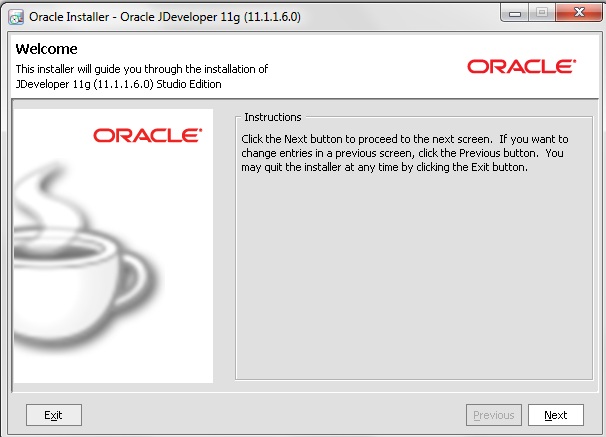
2. Choose Middleware Home Directory

3. Choose Install Type
Select either Complete or Custom depending on the type of installation you want to perform.

4. Choose Products and Components (Custom Install only)
5. JDK Selection (Generic Installer only)
6. Confirm Product Installation Directories

7. Choose Shortcut Location (Windows systems only)

8. Installation Summary

9. Installation status
10. Installation Complete
For Installing Oracle JDeveloper 11.1.1.7.0 Studio Edition (Oracle JDeveloper 11g R1 Patch Set 6), refer to the blog post here.
This patchset contains some new features mostly on the ADF Faces area and they include:
- Support for HTML 5 rendering for the data visualization components
- Support for touch gestures when accessing ADF Faces from an iPad
- Better support for search engines and Web crawling.
This version also includes the infrastructure for Oracle JDeveloper deployment to the upcoming Oracle Cloud.
Depending on the type of installer you are using, you can begin the installation process in one of the following ways:
■ To launch the platform-independent installer, enter: java -jar
jdevstudio11116install.jar.
■ To launch the Windows installer, double-click the
jdevstudio11116install.exe file.
■ To launch the Linux installer, follow these steps:
1. Ensure that the jdevstudio11116install.bin file is executable: chmod
+x jdevstudio11116install.bin.
2. Execute the file: ./jdevstudio11116install.bin.
You can also launch the installer in silent mode, to ensure that no configuration options are displayed during the installation process
Download Oracle JDeveloper 11.1.1.6.0
Oracle JDeveloper 11.1.1.6.0 Install Guide
Installation
============
1. Welcome
Click Next to begin the installation process.

2. Choose Middleware Home Directory

3. Choose Install Type
Select either Complete or Custom depending on the type of installation you want to perform.

4. Choose Products and Components (Custom Install only)
5. JDK Selection (Generic Installer only)
6. Confirm Product Installation Directories

7. Choose Shortcut Location (Windows systems only)

8. Installation Summary

9. Installation status
10. Installation Complete
Subscribe to:
Posts (Atom)